
Today’s newsletter highlights Microsoft OneNote and Box Notes: simple tools to capture ideas, organize your work, and collaborate with colleagues.
Workshops
OneNote Show & Tell
Thursday, April 16th
10:00 am – 10:45 am
Elrod 216
Hannah Phillips, Residence Life
Zach Nix, ITS
Register for ITS Workshops

April OneNote Workshop
Unlock the full potential of Microsoft OneNote in this practical Show & Tell session. Power user Hannah Phillips will demonstrate how she uses OneNote every day to capture meeting notes, document field observations on the go, and stay organized across devices. See how tools like the reusable Rocketbook notebook and app integrate seamlessly into her workflow, allowing handwritten notes to be scanned and instantly available in OneNote.
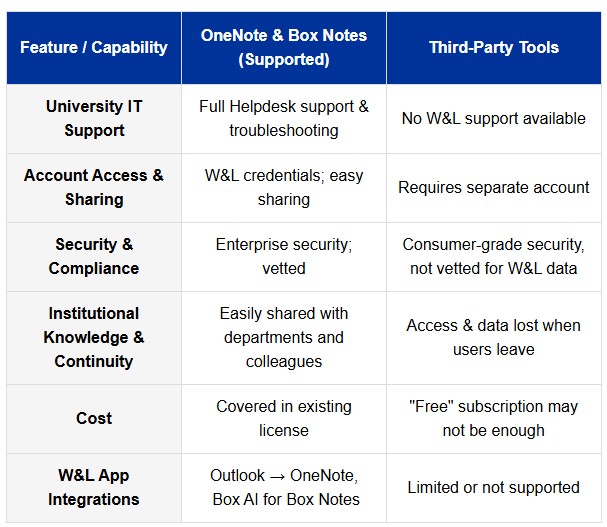
You’ll also learn how shared notebooks support collaboration, making it easy for teams to stay aligned and informed. ITS will highlight the advantages of using notes within the W&L ecosystem, including secure data storage, seamless integration with Microsoft 365, and why OneNote is a strong alternative to third-party note-taking apps. Whether you’re new to OneNote or looking to level up your workflow, you’ll leave with practical ideas you can use immediately.
Register for ITS Workshops

Family Tech Use Roundtable
Join the Caregivers ERG and ITS professionals (and fellow parents) for a lively and timely discussion about family and technology on Tuesday, April 21—lunch included!
What to Expect
- Real-world insights from Amy Allen, Rissie Murphy, and Zach Nix on using Apple Family Sharing
- A parent perspective from Kelli Woodard on Troomi phones for kids and teens
- Interactive roundtable: Share your own strategies, challenges, and tips with fellow faculty and staff
Please Register by April 7 (RSVP Required)
Register for Family Tech Roundtable
As AI Tools Multiply, Security Still Matters

As the number and variety of AI tools continue to grow, it is becoming increasingly difficult to track what information is being shared with third-party providers such as Anthropic, Google, OpenAI, and Perplexity.
Traditional AI chat interfaces, whether in a browser or desktop app, make it relatively easy to see what text or files you are submitting. However, newer AI‑powered tools and integrations can make it more difficult to understand what data is shared and what actions are taken.
For example, tools like ChatGPT Atlas or Comet by Perplexity may request broad permissions during initial setup. Accepting default settings can result in access to stored data, such as saved passwords or browsing history from other applications. Similarly, tools like Claude Code from Anthropic often prompt for permission, but it may not always be clear exactly what data access you are agreeing to. These integrations often run in the background, making it harder to recognize what information is being accessed or shared.
Before using any AI tool, take a moment to evaluate the type of information you are providing:
- Confidential data should never be entered into AI tools.
- Moderately sensitive information should only be used with caution and only within W&L-approved systems.
- Public information is generally safe to use.
Being aware of how AI tools access and handle data is essential to protecting both personal and institutional information.
When in doubt, if you wouldn’t post it on the internet, don’t paste it into AI.
Visit the updated ITS Security page for more information.
Why Use Microsoft OneNote or Box Notes Instead of Third-Party Tools
OneNote: Turn Meetings, Research, & Ideas into Action

Microsoft OneNote makes it easy to capture, organize, and revisit your notes, no matter which device you’re using. With seamless access across multiple platforms, your notebooks stay with you whether you’re at your desk, in a meeting, or on the go.
You can use OneNote on Windows and Mac desktop apps for a full-featured note‑taking experience. In a classroom or meeting space, you can access OneNote from a browser via MyApps (Office 365) or by visiting onenote.wlu.edu. On mobile, the OneNote apps for iOS and Android let you quickly capture ideas, photos, and to‑dos wherever inspiration strikes.
Want to save content from the web? The OneNote Web Clipper browser extension lets you clip webpages, articles, and bookmarks directly into your notebooks, which is great for research, planning, and record‑keeping.
This month’s training will highlight OneNote’s versatility by showing how to bring handwritten notes from a physical, non-digital notebook into OneNote through a mobile app.
Install OneNote Mobile App
Box Notes: Take Notes Anywhere, AI-Assisted & W&L-Approved

Use Box Notes for Faster, Smarter Collaboration
Need a quick place to draft a Campus Notice, share ideas with colleagues, or co-author content in real time? Box Notes offers a simple, flexible workspace with built-in collaboration and AI support, all accessible from your browser or the Box mobile app.

Use Box Notes for Faster, Smarter Collaboration
Need a quick place to draft a Campus Notice, share ideas with colleagues, or co-author content in real time? Box Notes offers a simple, flexible workspace with built-in collaboration and AI support: all accessible from your browser or the Box mobile app.
When Should You Use Box Notes?
Document the “why” behind your work
If you’ve ever opened a department folder and thought “What is all this?”
You’re not alone.
Create a “Read Me (Folder Name)” Box Note at the root of the folder to explain the purpose, structure, and key details. Future you (and your colleagues) will thank you.
Why Box Notes Works
Everything in one place
Notes live alongside your files in Box, keeping related documents, meeting notes, and project materials organized and easy to find.
Real-time collaboration
Work together in the same note simultaneously. Edits appear instantly, comments stay contextual, and version confusion disappears.
Enterprise-level security
Notes inherit Box’s security and permissions, so you can confidently manage access, retention, and compliance just like any other file.
Lightweight and flexible
Perfect for:
- Brainstorming
- Drafting announcements
- Creating checklists
- Documenting processes
For quick tasks, there’s no need to open a full document editor. Box Notes help you move faster, stay organized, and collaborate effectively.
Check out this Box Notes demo from Box
Apple Tip of the Month

Okta Browser Plugin
For many W&L employees, the Okta page—aka MyApps—is the daily hub for accessing frequently used applications like Box, Workday, Canvas, 25Live, Outlook, and more. But did you know there’s an easy way to streamline access, enhance security, and save time?
By adding the Okta browser plugin, you can streamline access to your most-used applications without relying on bookmarks or navigating back to MyApps each time. The plugin acts as a compact, secure shortcut in your browser, automatically organizing your apps based on recent use so your most important tools are always within easy reach.
While bookmarks can work, they often require extra clicks or clutter your screen. The Okta plugin keeps things simple, efficient, and tailored to how you actually work.
Simplify Access to Your Favorite Applications with the Okta Browser Plugin – How to Install
PC Tip of the Month

Okta Browser Plugin
For many W&L employees, the Okta page—aka MyApps—is the daily hub for accessing frequently used applications like Box, Workday, Canvas, 25Live, Outlook, and more. But did you know there’s an easy way to streamline access, enhance security, and save time?
By adding the Okta browser plugin, you can streamline access to your most-used applications without relying on bookmarks or navigating back to MyApps each time. The plugin acts as a compact, secure shortcut in your browser, automatically organizing your apps based on recent use so your most important tools are always within easy reach.
While bookmarks can work, they often require extra clicks or clutter your screen. The Okta plugin keeps things simple, efficient, and tailored to how you actually work.
Simplify Access to Your Favorite Applications with the Okta Browser Plugin – How to Install
General Genius

Chrome Split View in Action
Hannah Phillips, Associate Director of Housing & Residence Life, shared a simple but powerful way to use Chrome’s split view to streamline complex work. Housing selection involves detailed room configurations, eligibility rules, and large datasets across multiple tabs and windows. In this kind of high-stakes environment, accuracy and efficiency are essential. This setup delivers both.
The Setup: One Screen, Split Smarter
Using Chrome split view, a merged browser tab becomes a side-by-side workspace:
- Left: Live system where updates are made
- Right: Test or preview environment for instant validation
This eliminates constant tab switching and allows real-time verification, key for helping students find the bed that is just right.
The Power Move: Add a Data Reference Screen
Alongside the split view, a second (portrait) monitor displays a large Excel report with over 1,000 rows. This acts as a constant reference point for:
- Verifying settings at the bed, room, or building level
- Quickly troubleshooting inconsistencies
- Keeping complex data visible without disrupting workflow
Why It Works
This setup is a genius example of W&L productivity in action:
- Split view reduces friction between tasks
- Side-by-side validation improves accuracy
- Persistent visibility of key information speeds decision-making
You don’t need specialized tools to replicate this setup, just a thoughtful use of Chrome’s split view and your existing screens.